

Design a complete MiniDisc print set
MD Label Studio combines release information, artwork, MiniDisc-specific geometry and print preparation. The current Universal application is version 1.2 build 150 for x86_64 and arm64.
Before you begin
- Use macOS 13.5 or later and keep enough storage for artwork and exported PDFs.
- Keep original artwork outside the project as a separate backup.
- Real printer margins, colour management, cutter registration and media feed require physical output tests.
From a blank project to a PDF
Choose a layout
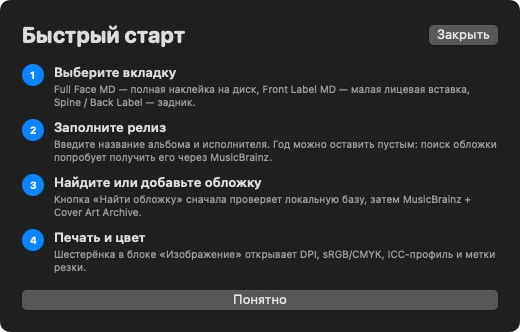
Select Full Face MD, Front Label MD, Track List, Spine / Back Label or Plotter Cut.
Enter release data
Add album, artist, year and track data. Review any metadata match before applying it.
Add artwork
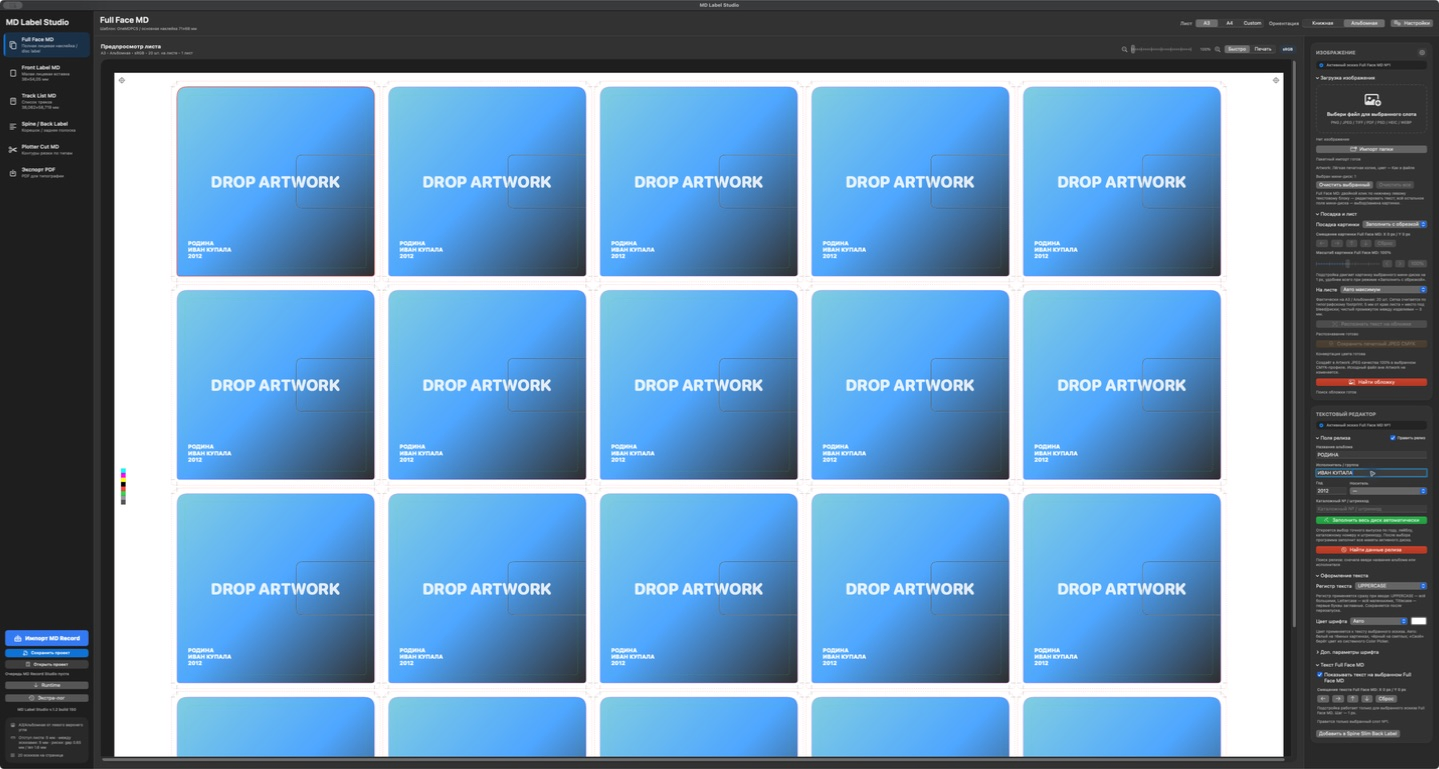
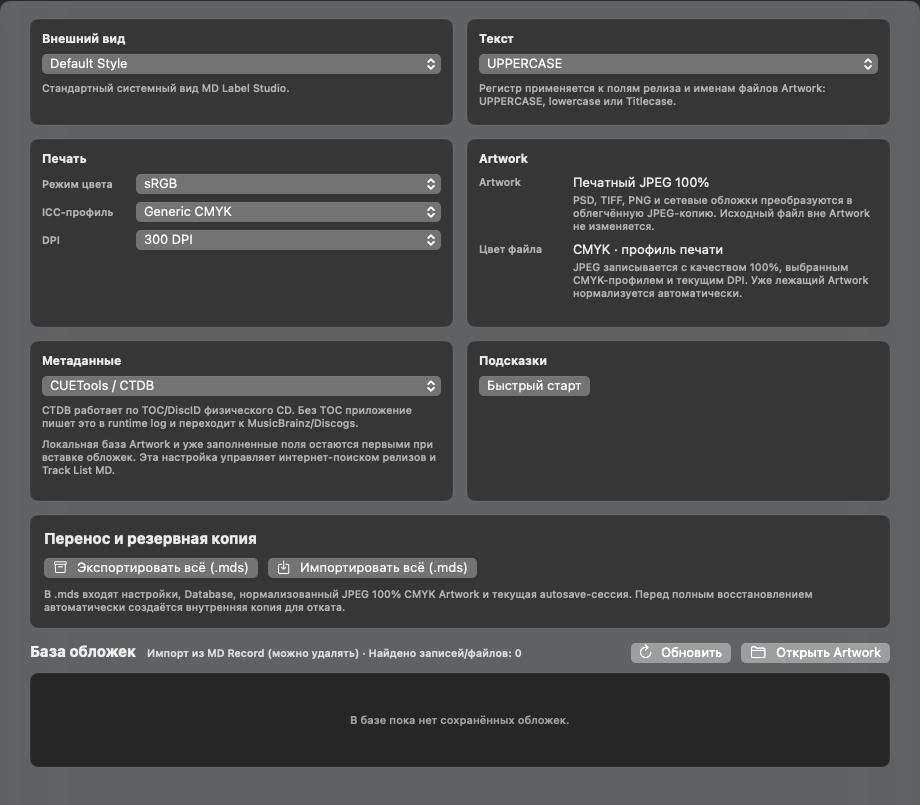
Drop or choose artwork, then set crop, positioning and colour options for the selected slots.
Preflight and export
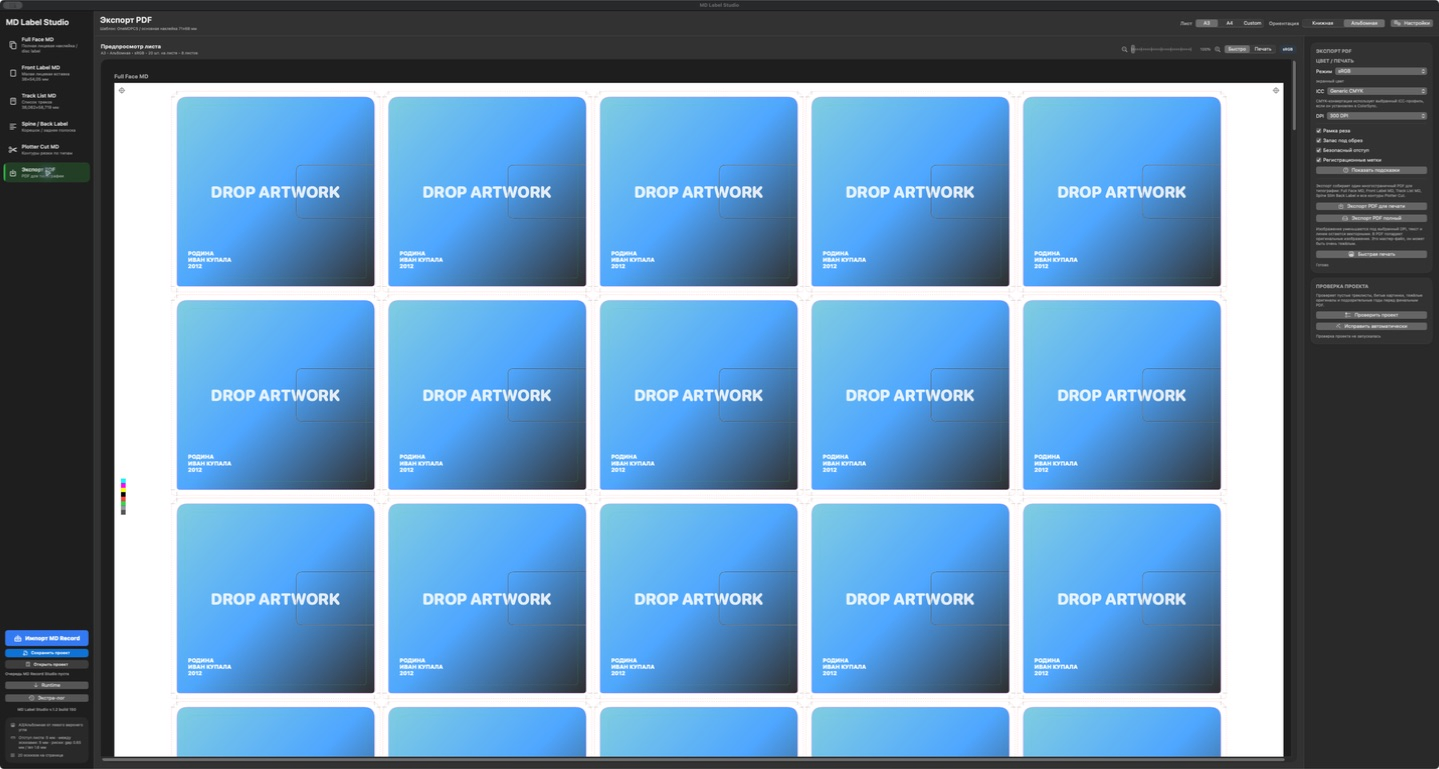
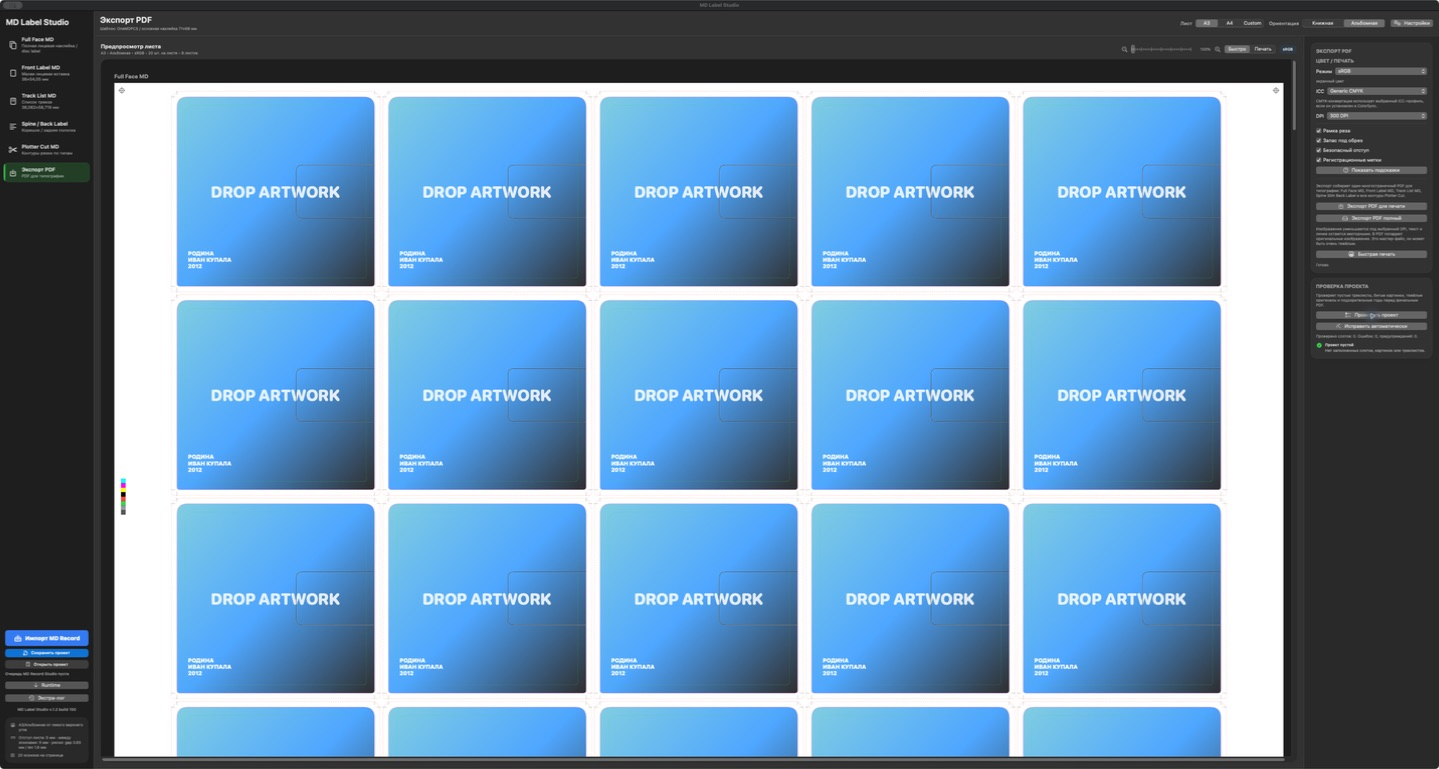
Run project validation, resolve warnings, select the output layout and create the PDF.
Five focused output modes
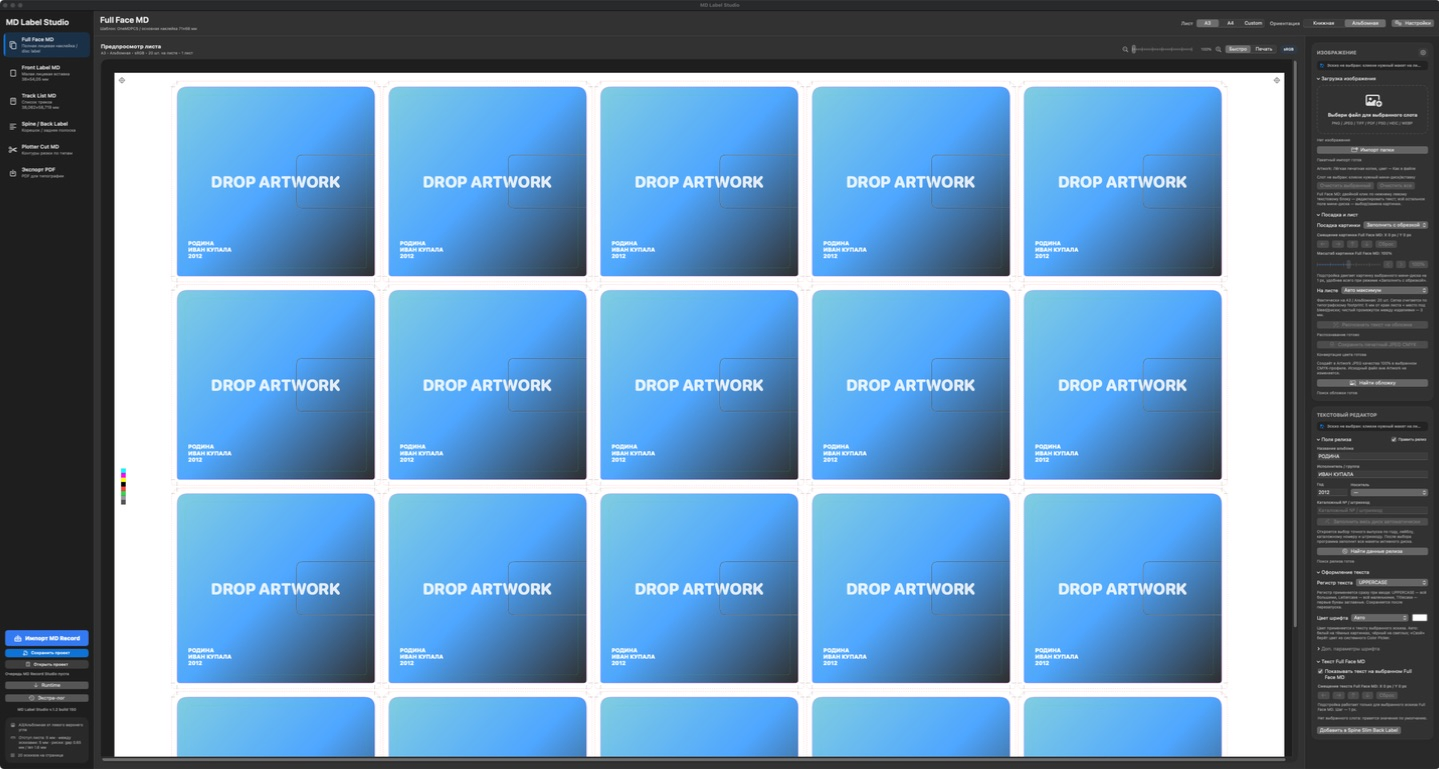
Full Face MD
Build a full-face disc label sheet with repeated slots. Select a slot to edit its release, image and text properties; use this view when the printable material covers the disc face.
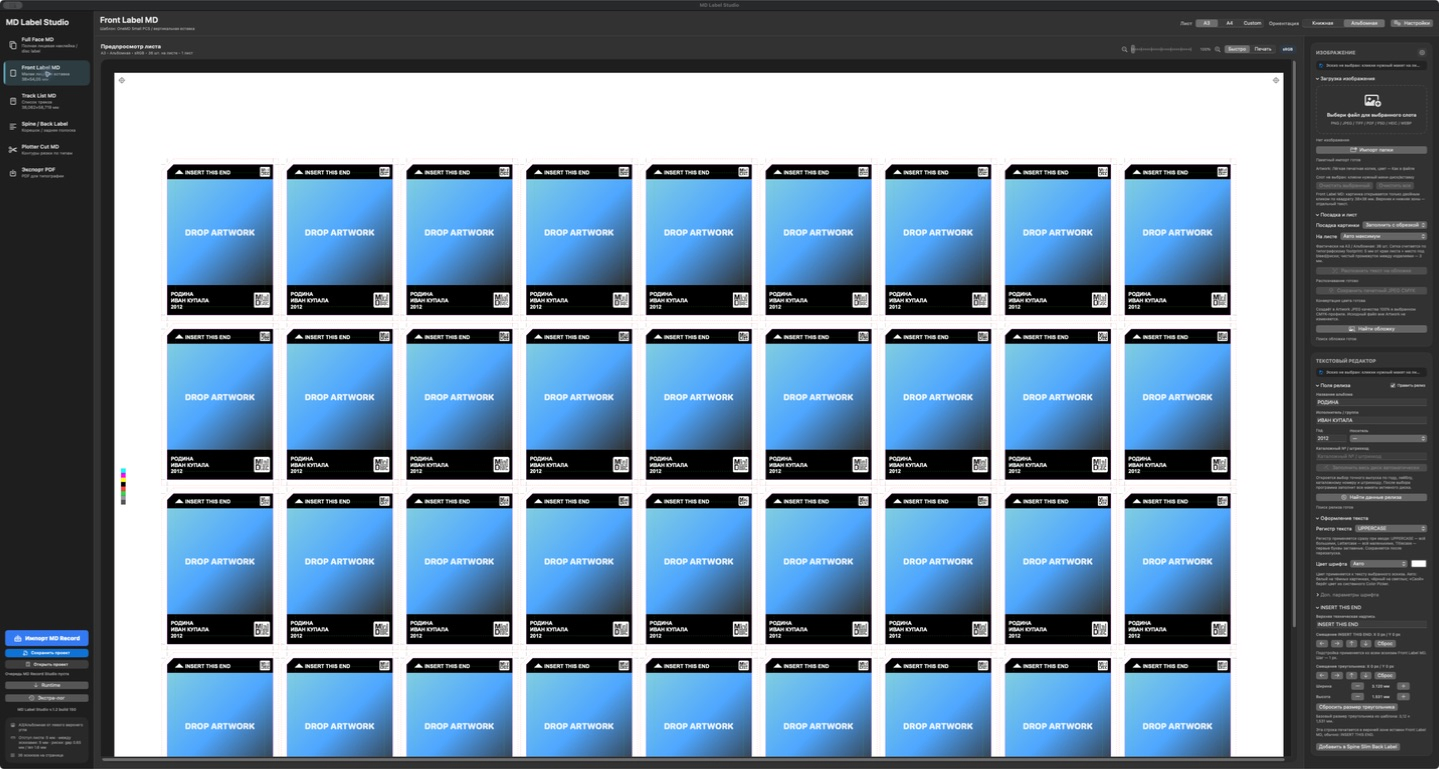
Front Label MD
Prepare compact front inserts. The page preview shows multiple repeated labels and their release text so alignment can be reviewed before export.
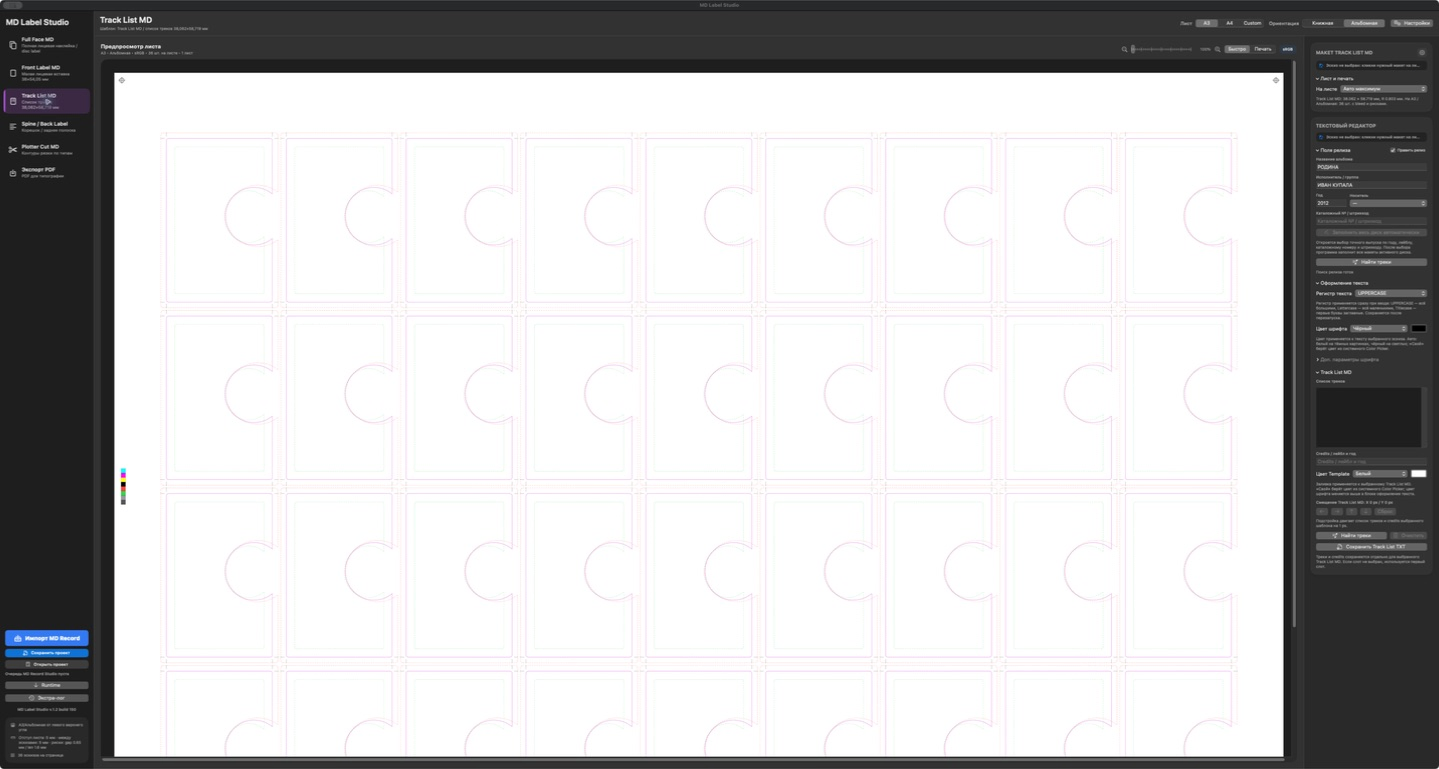
Track List
Lay out track information in the dedicated track-list geometry. Check long titles, numbering and line wrapping at the final print size.
Spine / Back Label
Use the spine and back-label workspace for case markings and narrow text. Always print a test on plain paper before using final stock.
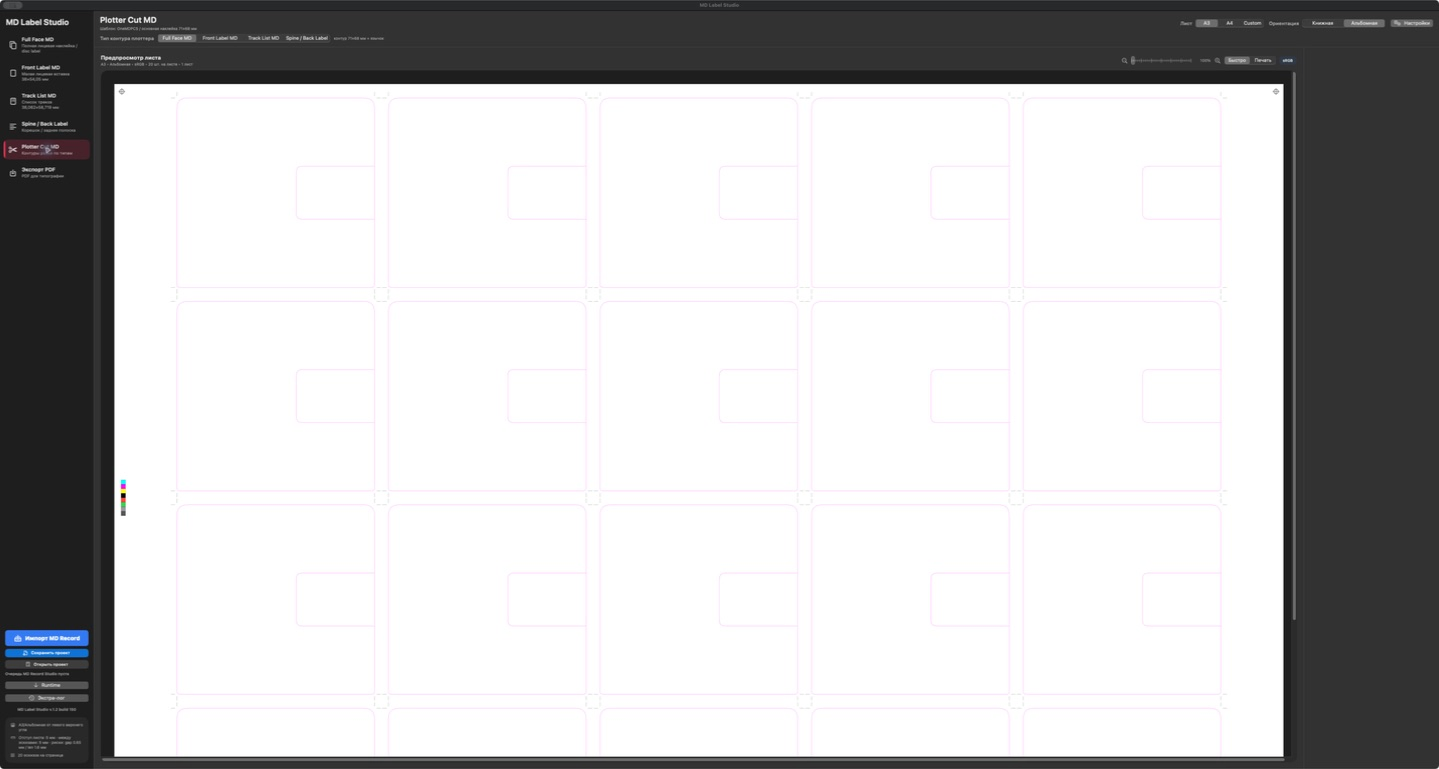
Plotter Cut
Shows cutter-oriented outlines rather than finished artwork. Verify units, material origin and cutter settings on the physical device.
Build a reviewable project
Release editor
Each selected slot can hold album, artist, year, track list and release identifiers. Enter known data first; then use metadata lookup as a candidate source and confirm the exact edition before applying it.
Artwork
Use image controls to position and crop the cover for the selected geometry. Low-resolution or unsuitable colour-space artwork may look acceptable on screen but fail in print; inspect the exported PDF at 100% and run a proof.
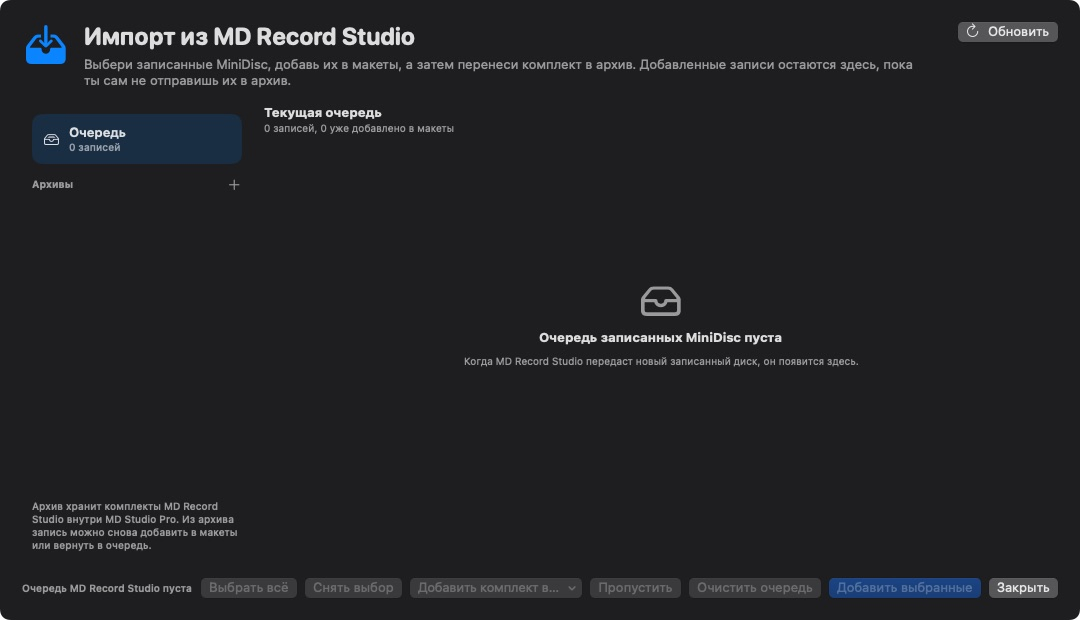
Import from MD Record Studio
The import queue can receive compatible disc information from MD Record Studio. Review the imported track order and titles; the source application and physical disc remain the authoritative reference.
Preflight before using media
- Save the project and run validation.
- Resolve missing release fields or confirm that an intentionally blank field is acceptable.
- Inspect artwork placement, crop, text overflow and all repeated slots.
- Export the PDF and inspect every page at 100%.
- Print a plain-paper proof and compare it to the physical MiniDisc or case before final stock.
Current build 150 workspaces
Warnings are there to protect output
Missing release data
Enter the album or artist when the layout depends on it, or deliberately confirm the blank state. Do not accept a metadata match solely because a cover looks similar.
Artwork is soft or cropped incorrectly
Return to the active slot, verify the source resolution and crop, then export again. Do not upscale a small image and treat the preview as print proof.
PDF or print alignment differs
Disable printer scaling, print at 100%, inspect driver margins and compare a paper proof against the physical target. The application cannot verify a specific printer, stock or cutter automatically.