
What the application does
MD Record Studio is a native macOS workspace for compatible Sony NetMD decks and portable recorders. It reads the disc TOC, shows capacity and codec information, manages titles and track order, controls playback, and prepares supported audio files for recording.
Requirements
- macOS 13.5 or later.
- Current verified Universal build: 1.1 (450), x86_64 and arm64.
- A compatible Sony NetMD USB device and a writable MiniDisc for hardware operations.
- Universal compatibility with every NetMD or Hi-MD model is not claimed.
Your first NetMD session
Connect
Insert a MiniDisc, connect the NetMD device directly by USB and press Connect.
Read the TOC
Wait until the disc title, tracks, codec and remaining capacity are visible.
Organize
Edit titles, reorder tracks or import names from CSV. Refresh the TOC after changes.
Record safely
Choose SP, LP2, LP4 or Mono, add supported files to the queue and review capacity before writing.
Disc, tracks and transport
Header and disc state
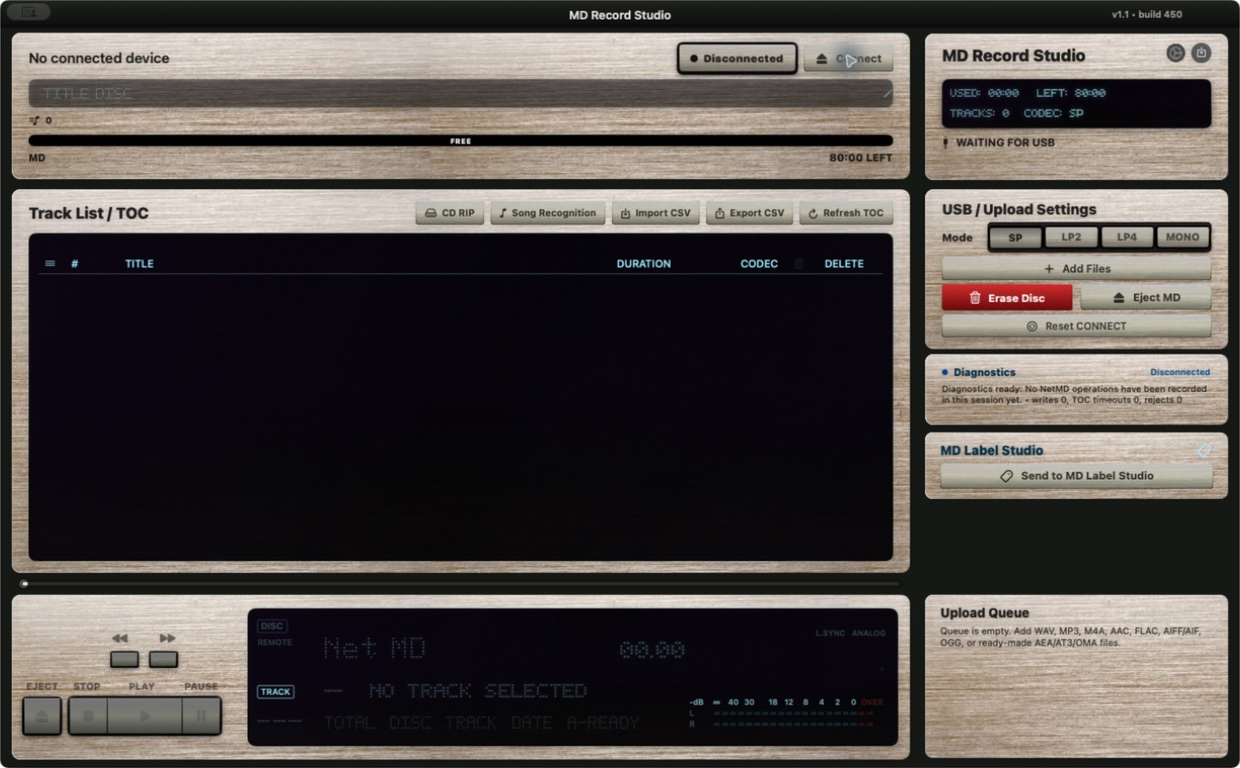
The top area identifies the connected device, shows the disc title and capacity scale, and provides Connect/Disconnect controls. Do not erase or eject while a write operation is active.
Track List / TOC
The central table contains track number, title, duration and codec. Available actions include title edits, reordering, deletion, CSV import/export and TOC refresh. A refreshed TOC is the confirmation that compatible changes reached the disc.
Transport and upload queue
The lower transport controls operate the selected track. The right-side upload queue lists files prepared for recording; check the selected mode and estimated disc capacity before starting.
Configure before a hardware workflow
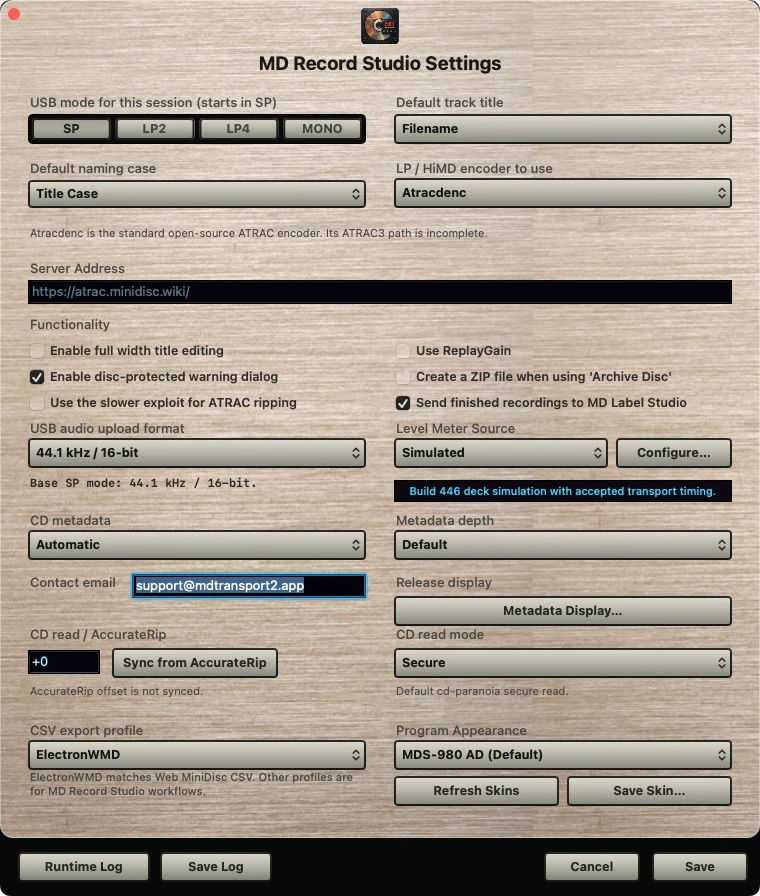
- Recording mode: SP, LP2, LP4 or Mono. The chosen mode affects quality and available minutes.
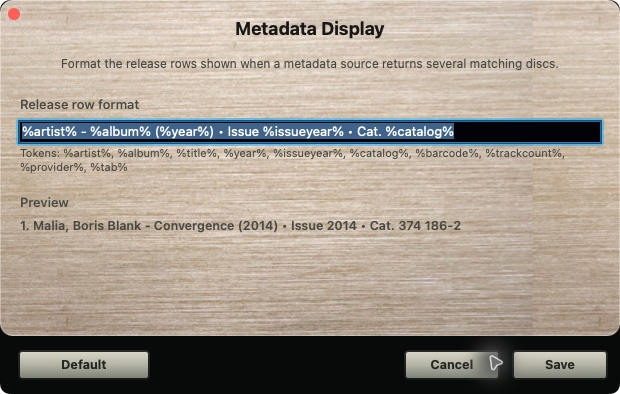
- Default track-title formatting and metadata display can be adjusted without changing the original source files.
- CSV import/export is intended for reviewable title interchange. Keep a copy before bulk changes.
- Song Recognition and metadata services may require audio input or network access and must be reviewed before applying names.
Titles, CD audio and recognition
Edit titles and order
- Read the current TOC and keep a CSV export if the disc is important.
- Edit only the intended titles or reorder the selected tracks.
- Apply the operation, then refresh TOC and compare the result.
CD RIP
The CD RIP workflow reads an audio CD, resolves metadata and prepares tracks for the MiniDisc workflow. Review track order, release match and available disc capacity before recording. Physical-drive behavior can vary and requires a real disc.
Song Recognition
Use a supported audio input, monitor the recognition list and apply only matches you have reviewed. Recognition is an aid, not proof of a recording's identity.
Current build 450 windows
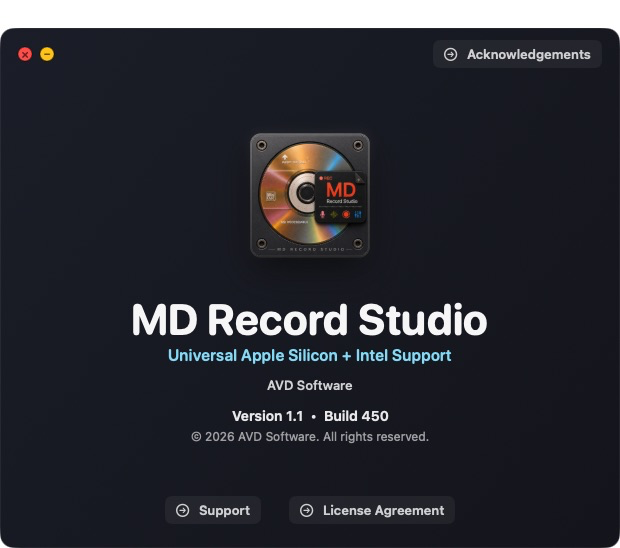
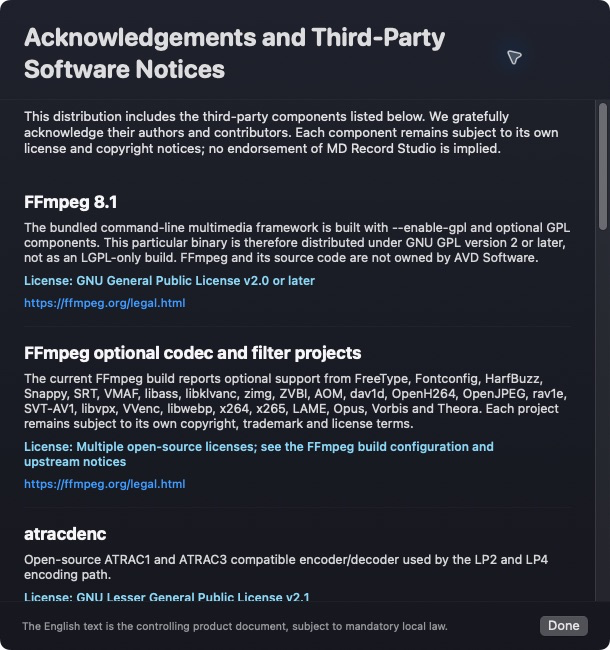
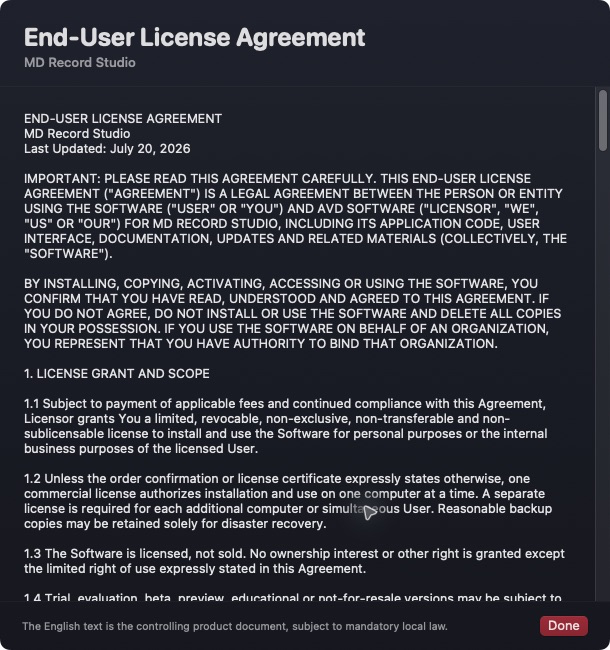
Common checks
No device appears
Reconnect the USB cable directly, power-cycle only the NetMD device, relaunch the application and press Connect again. Avoid disconnecting during a write. If the model remains absent, include the exact model and macOS version in a support request.
TOC or capacity looks stale
Finish the current operation, press Refresh TOC and compare the disc title, track count and remaining time. Do not erase a disc merely to refresh the display.
A file cannot be queued
Confirm the file is readable, supported and stored on an available volume. Review duration and selected mode. Keep the original file; conversion and recording should never be treated as a backup.